enola Dashboard gives you a local view of your repository's architecture. Use it to review findings, follow dependencies, and check what changed after an edit. It reads snapshots produced by enola's CLI and MCP tools, and your repository data stays on your machine.
The screenshots use a local Codex snapshot from September 8, 2026: 3,763 source files and 104,226 architecture facts. The results reflect that checkout and configuration.
This walkthrough takes you from opening your first snapshot to reviewing an architectural change. You'll need enola installed and a local repository. See the installation instructions if you're getting started.
Open your repository
In a terminal, change into the repository you want to inspect and run:
cd /path/to/your/repository
enola --generate
enola dashboard --open
The first command creates an architecture snapshot. The second starts the dashboard and opens your browser. Keep that terminal running; Ctrl-C stops the dashboard. No MCP server is required.
You can also open the dashboard before generating a snapshot. It will show the generation command to run. Run that command in another terminal, then click Refresh.
To inspect a different repository or an explicit multi-repository configuration:
enola dashboard --open ../service-a
enola dashboard --open cluster.yaml
An ordinary repository launch loads only that repository's snapshot. Use an explicit cluster configuration when you want a multi-repository graph. Read Cross-repository code analysis for why repository boundaries rarely match architecture boundaries.
Start with Findings
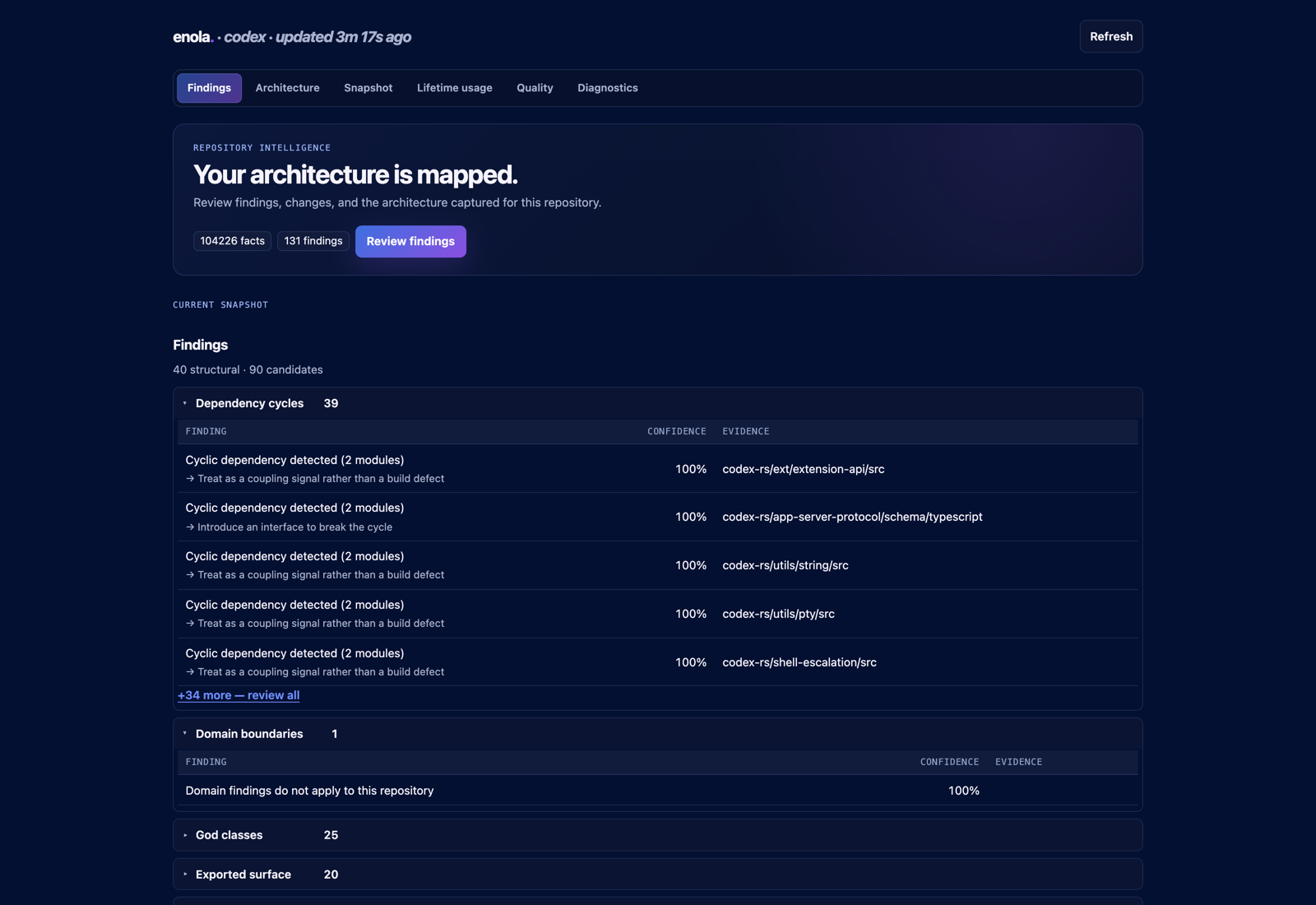
The Findings screen always shows findings from the current snapshot. When a comparable previous recorded snapshot exists, the What changed? section groups new and resolved findings.
The labels help you interpret the results:
- Structural findings describe conclusions supported directly by the measured architecture.
- Candidates are heuristic findings that need closer inspection.
- Informational items describe the architecture and are excluded from structural and candidate counts.
Groups containing structural findings appear first. Short previews keep the list manageable; open the full list to inspect more findings. Read the evidence and suggested action before deciding whether a finding needs work.
A finding does not automatically mean a build should fail. Your project's policy determines which findings fail a check. Policy as code shows how graph evidence becomes an enforceable constraint.
Investigate a module before changing it
For a concrete example, open the Codex architecture overview and select the dashed cluster labelled codex-rs/core/src +5. In this snapshot, its inspector lists six members, including core/src/config, core/src/session, and core/src/tools. One member is core/tests/common, which is useful context before interpreting the group as a production dependency problem.
Click a member to explore its neighborhood. To investigate another module before changing it:
- Open Architecture and search for the module's name.
- Select it to focus the graph on its immediate dependency neighborhood.
- Inspect its consumers to identify code that may need review or testing.
- Select a dependency to inspect the source and target files and the relationship type recorded for that connection.
- Read the findings associated with the module and follow the evidence into the source.
Search covers every connected module, even when the overview draws only a smaller set. Use Fit view to fit the visible graph and Clear selection to reset the inspector. In a focused neighborhood, Clear focus returns to the overview.
Dependency cycles appear as clusters in the overview. These help you spot groups of modules that depend on one another. Investigate the members and their source dependencies before deciding where to break the cycle. For the underlying model and its limits, read What a dependency graph can and cannot tell you.
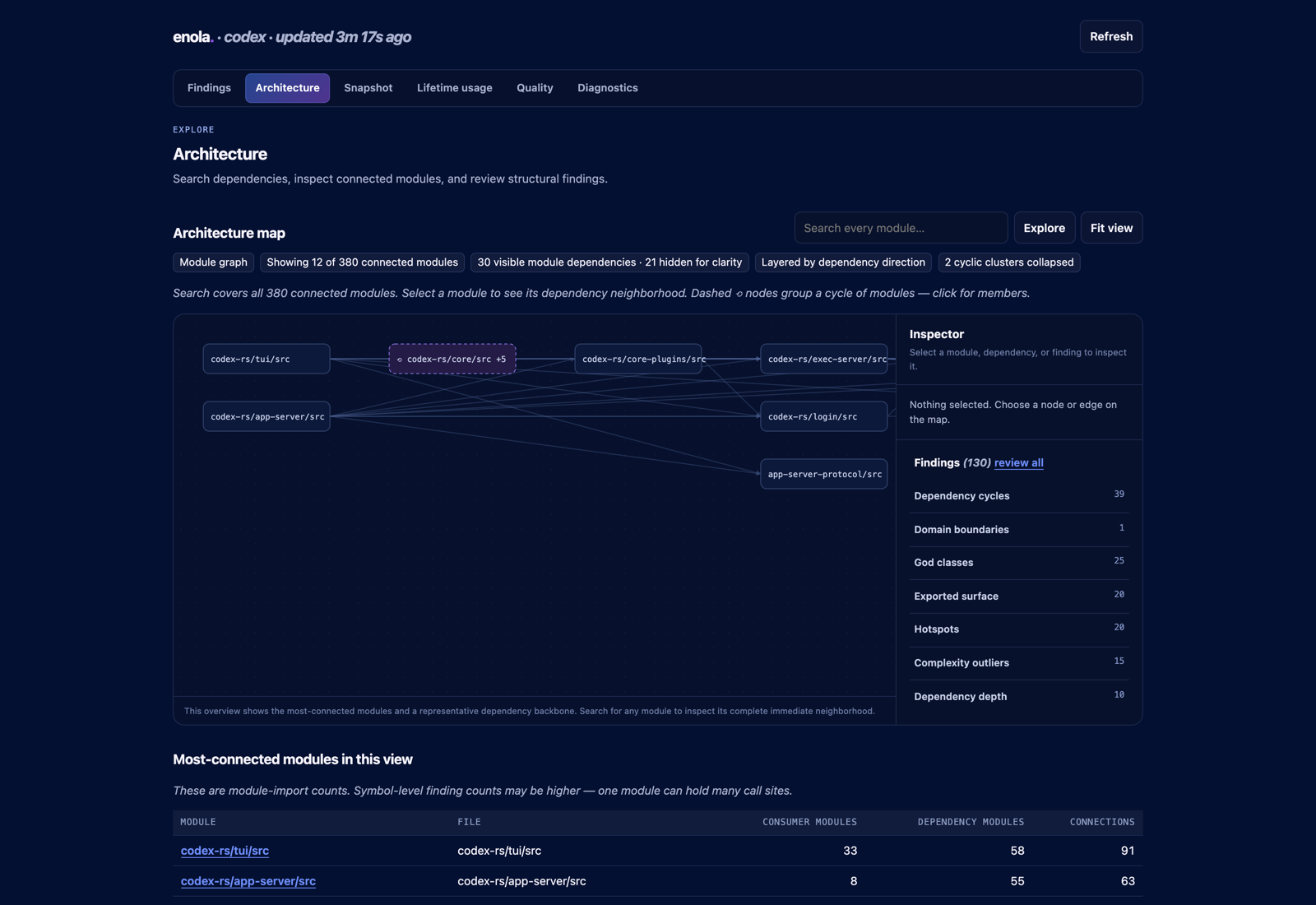
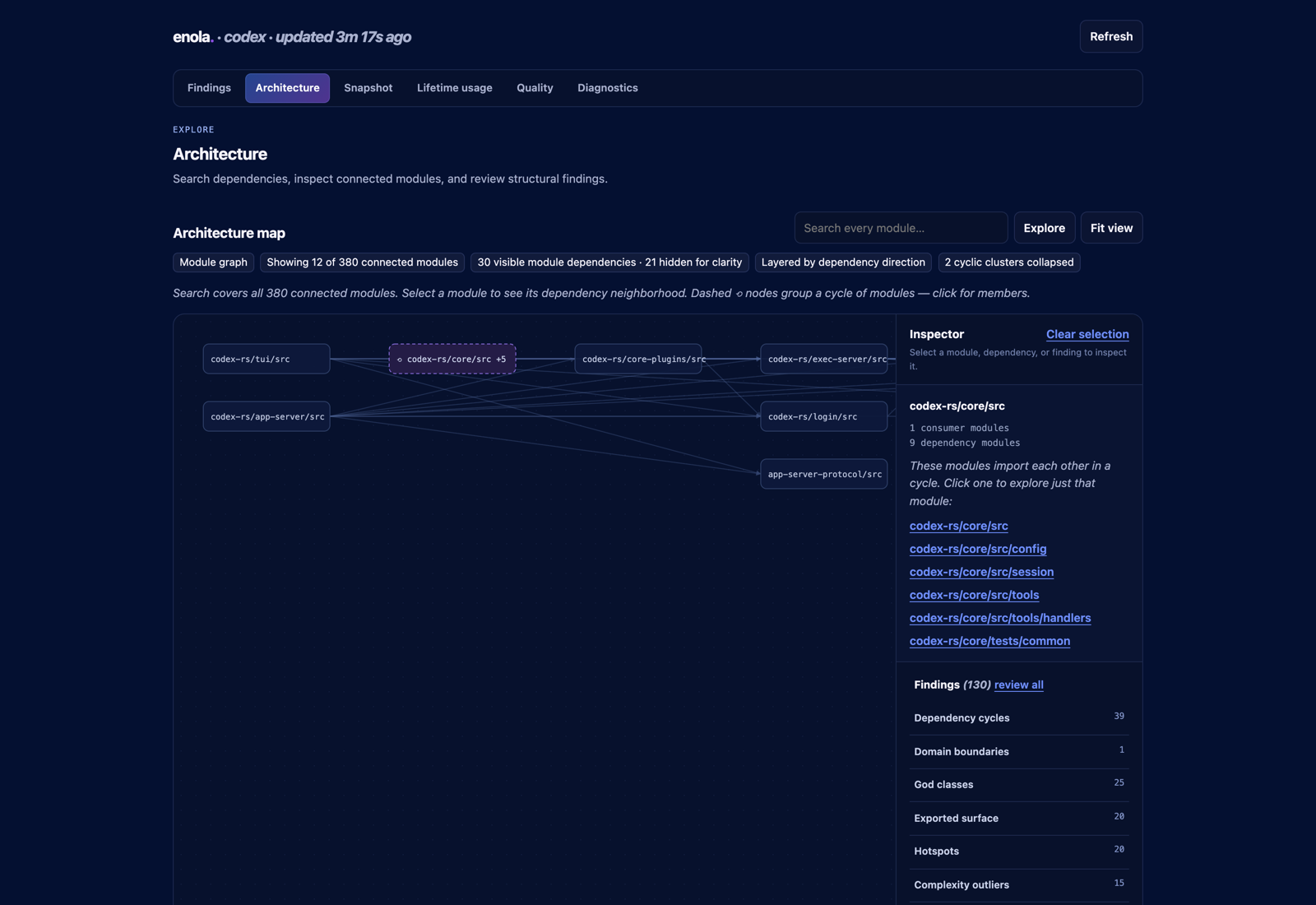
Pay attention to the scope of a count. A finding may count symbol-level dependants while the graph shows module-level neighbors. The inspector identifies what the metric measures; the two numbers need not match.
Review a change against a baseline
To see what your change introduced, capture the starting point before editing. The broader workflow is covered in How to use enola day to day.
enola baseline pin
Make your code change, then run this in another terminal while the dashboard remains open:
enola check --write
Click Refresh in the dashboard to load the newly written snapshot.
Now review the result:
- On Findings, look for new and resolved findings.
- Open a relevant finding and inspect its evidence in Architecture.
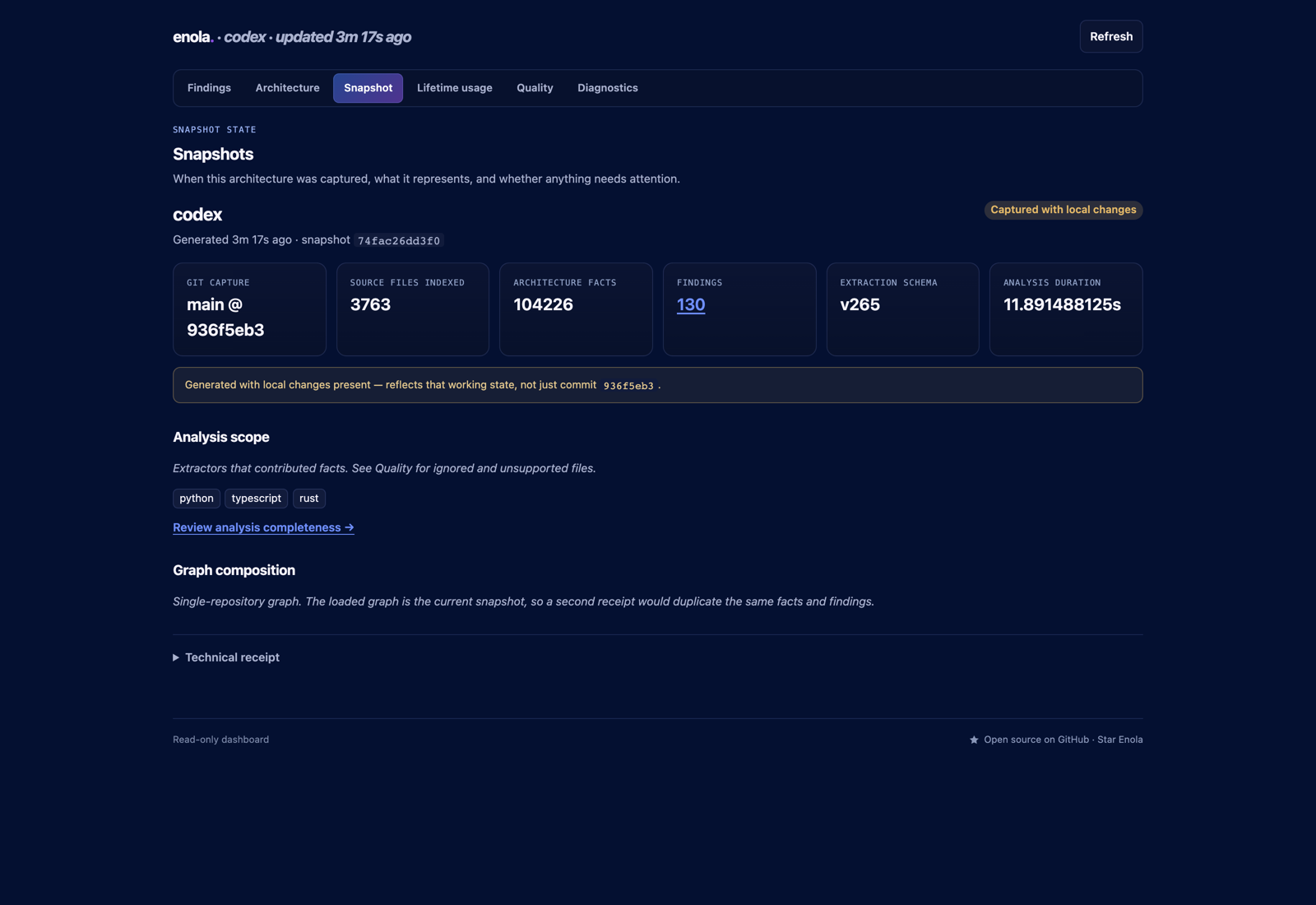
- On Snapshot, confirm that the snapshot represents the working state you just checked.
- On Quality, check for gaps that might affect your interpretation.
For a change to one of those Codex modules, ask whether the edit introduced an unexpected dependency or cycle. If it did, inspect the source connection, revise the code if appropriate, run enola check --write again, and refresh.
Keep the original baseline pinned so each CLI check is graded against the same starting point. The dashboard's change cards compare each written snapshot with the previous recorded snapshot, so after the first iteration they show the latest incremental change.
check also reports a CLI verdict and can exit nonzero. Read that output: a policy failure, missing baseline, or incompatible comparison needs a different response. If the baseline is not comparable, don't interpret an absent change summary as proof that nothing changed.
Check freshness and coverage
Before relying on either a finding or the absence of one, check what enola actually analyzed.
Snapshot shows when the graph was generated, the Git ref and working-tree state, the extraction schema, contributing extractors, and analysis duration. “Captured with local changes” means the snapshot represents the commit plus the uncommitted changes present at generation time.
Quality shows indexed source, configured exclusions, unsupported inputs, recognized files that emitted no facts, inactive extractors, parse failures, and unresolved cross-repository connections.
For example, if a module appears to have no consumers, check whether the repository containing its callers was loaded and whether its files were successfully analyzed. An unobserved caller is not evidence that the caller does not exist.
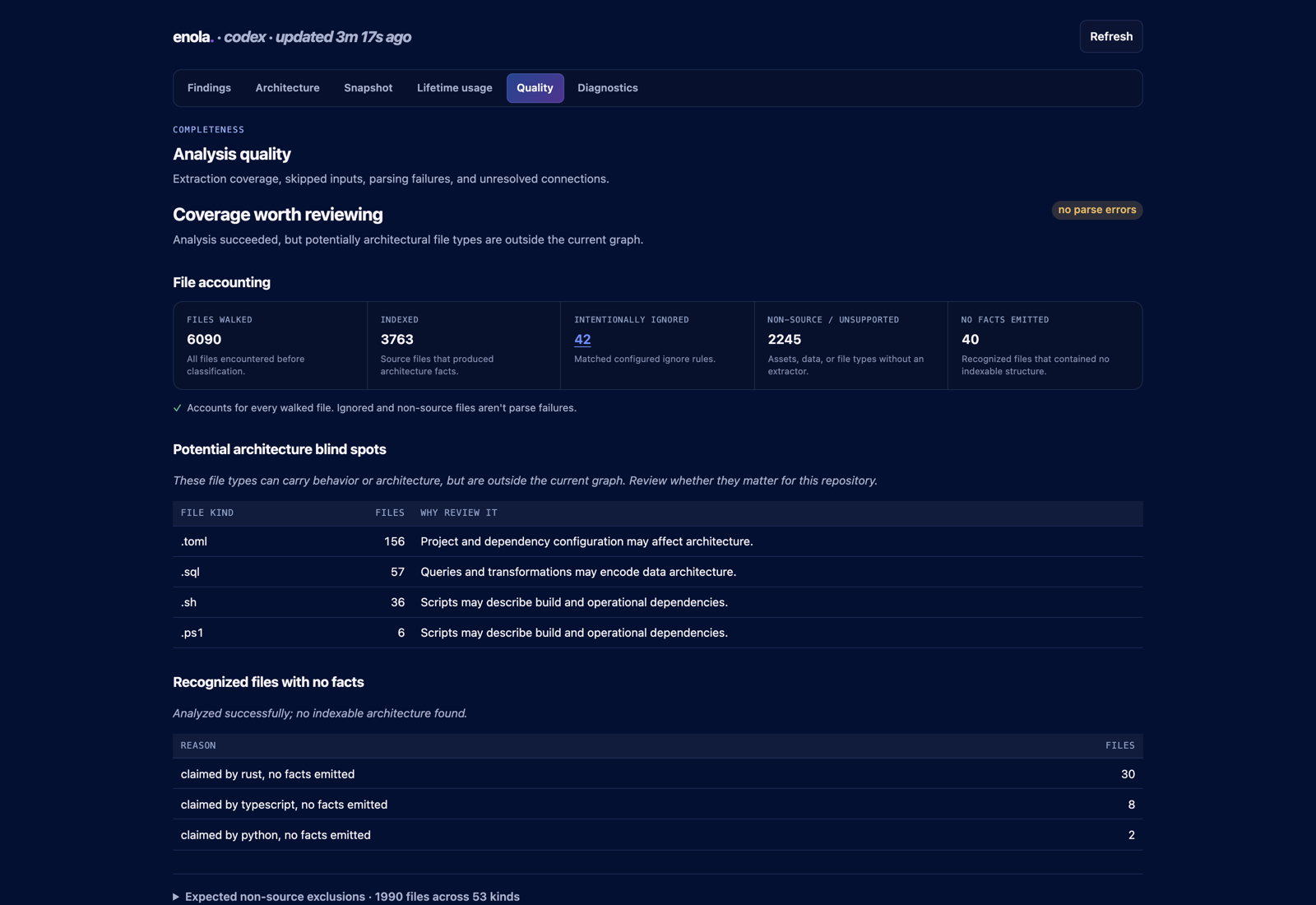
For these captures, the configured extractor list was Rust, TypeScript, Python, and OpenAPI; the first three contributed facts. enola also detected C++, gRPC, manifests, and Markdown intent support that this explicit list did not enable. Zero parse errors therefore does not mean complete repository coverage. Parsing code is not the same as mapping architecture explains why extraction is only the first part of the model.
Load newer snapshots when you're ready
The dashboard keeps the graph stable while you inspect it. After another enola process writes a newer snapshot, click Refresh to load it from disk. You do not need to restart the standalone dashboard.
Refresh reads saved data; it does not analyze your source files. If you edited code and want an updated snapshot, run:
enola --generate
Use enola check --write instead when you also want to compare and grade the change against your baseline.
An MCP-hosted dashboard shows its server's current graph when you refresh the page.
After enola upgrade, you may see a regeneration notice if the extraction schema changed. Upgrading replaces the binary, not the snapshots. Run the command shown in the notice, then refresh. Existing findings remain visible while you do this.
Find the right dashboard and usage information
If you're already using enola through an MCP session, find its dashboard with:
enola --status
This is also useful when several workspaces are open. Diagnostics shows active processes, URLs, ports, and paths, including the process serving the current page.
Lifetime usage shows accumulated tool calls and estimated value across repositories and completed sessions. These machine-wide totals are separate from the repository snapshot you're reviewing.
If the browser won't connect
Start with the complete local http:// URL printed in the terminal. Keep the dashboard process running while using the page.
If your browser blocks local HTTP, allow the loopback address or open the printed URL in another browser. Run enola --status if you've lost the address or need to identify the right session.
If the page opens but still shows older results, confirm that you've generated or written a newer snapshot for the same repository, click Refresh, and check the generation details under Snapshot.
Try it on your next change
Choose one module you're about to edit. Inspect its consumers, pin a baseline, make the change, and run enola check --write. Refresh the dashboard and follow any new findings back to their evidence.
That gives your review a concrete question to answer: did this change alter the architecture in the way you intended?
Frequently asked questions
Does enola Dashboard upload repository data?
No. enola Dashboard reads snapshots stored on your machine, so your repository data stays local.
Does enola Dashboard require an MCP server?
No. Run enola dashboard --open to start the standalone dashboard. An MCP-hosted dashboard is also available when you use enola through an MCP session.
What does Refresh do in enola Dashboard?
Refresh loads the latest saved architecture snapshot from disk. It does not analyze your source files. Run enola --generate or enola check --write before refreshing when you want to inspect a new snapshot.
What does enola Dashboard compare against?
The dashboard's change cards compare the current snapshot with the previous recorded snapshot. The enola check command separately grades changes against the pinned baseline.
How do I open enola Dashboard for another repository?
Pass the repository path to the command, for example enola dashboard --open ../service-a. Pass an explicit cluster configuration instead when you want a multi-repository graph.