01 · Start
Generate a snapshot and open it
enola --generate
enola dashboard --open
The dashboard stays attached to the terminal until Ctrl-C. It binds to 127.0.0.1 and prints the complete local URL. Pass a repository or cluster configuration path to open a different snapshot.
enola dashboard --open ../service-a
enola dashboard --open cluster.yaml
02 · Review
Review a change
enola baseline pin
# make the change
enola check --write
enola dashboard --open
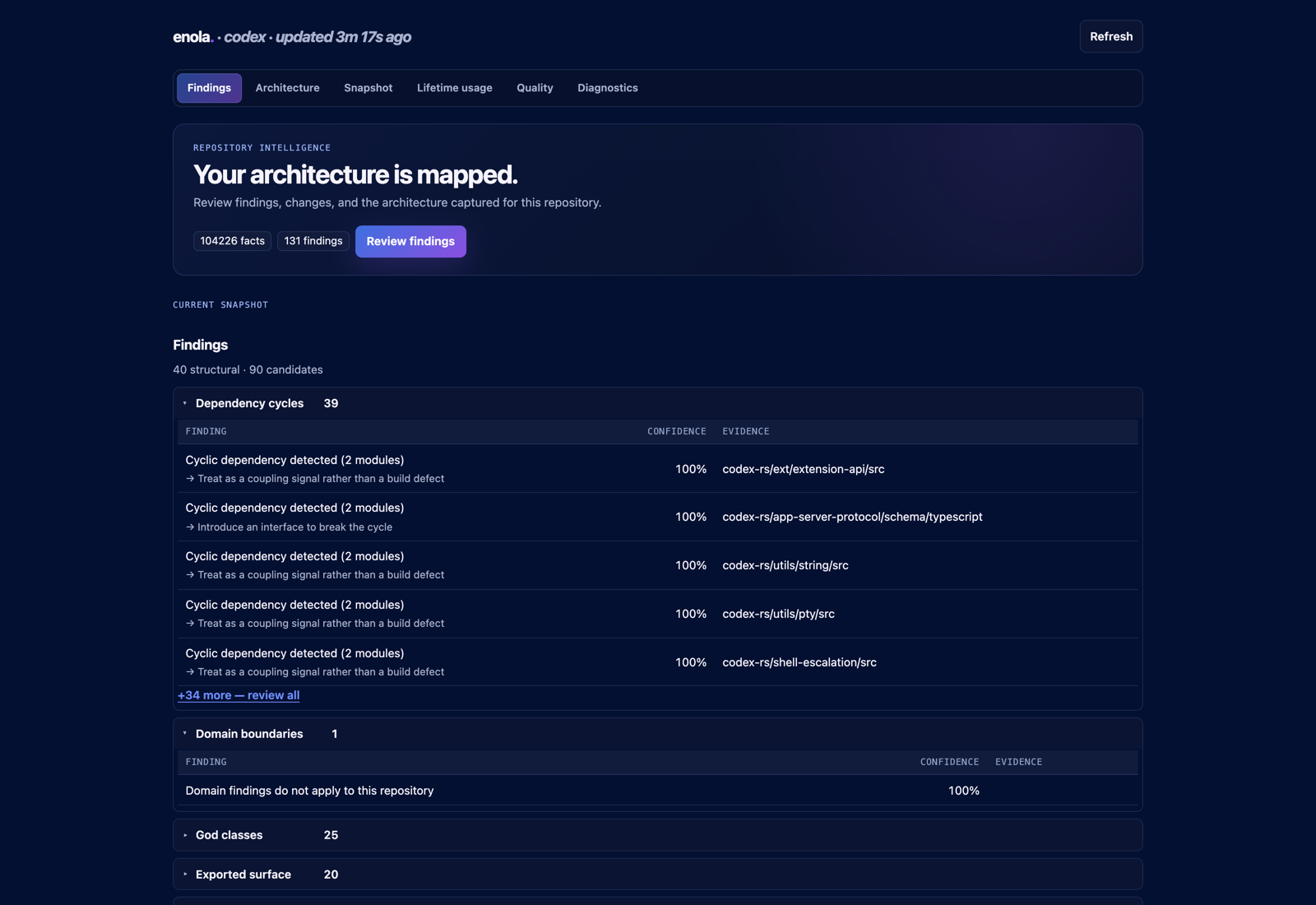
Start on Findings. New and resolved cards require a comparable baseline; without one, the tab shows the current snapshot. Open a finding to inspect its measured evidence in Architecture.
03 · Architecture
Follow a dependency
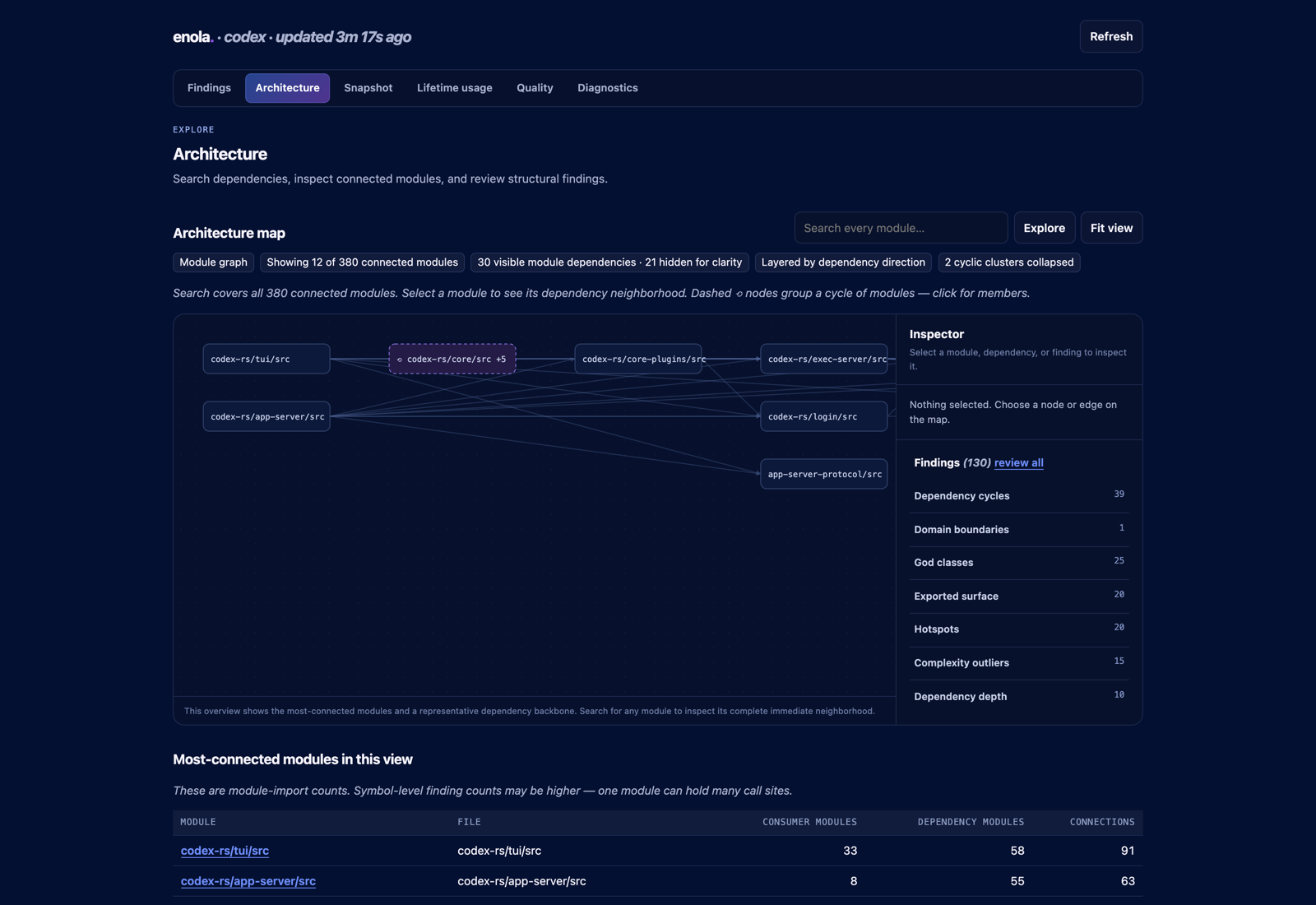
Search covers every connected module, even when the overview draws a smaller set. Select a module to see its immediate consumers and dependencies, the source facts supporting each edge, associated findings, and highly connected modules. The graph, inspector, finding list, and module table share the same selection.
04 · Provenance
Verify what the snapshot represents
Snapshots records the Git ref and working-tree state, extraction schema, contributing extractors, and analysis duration. “Captured with local changes” means reproducing the snapshot requires both the commit and those uncommitted changes.
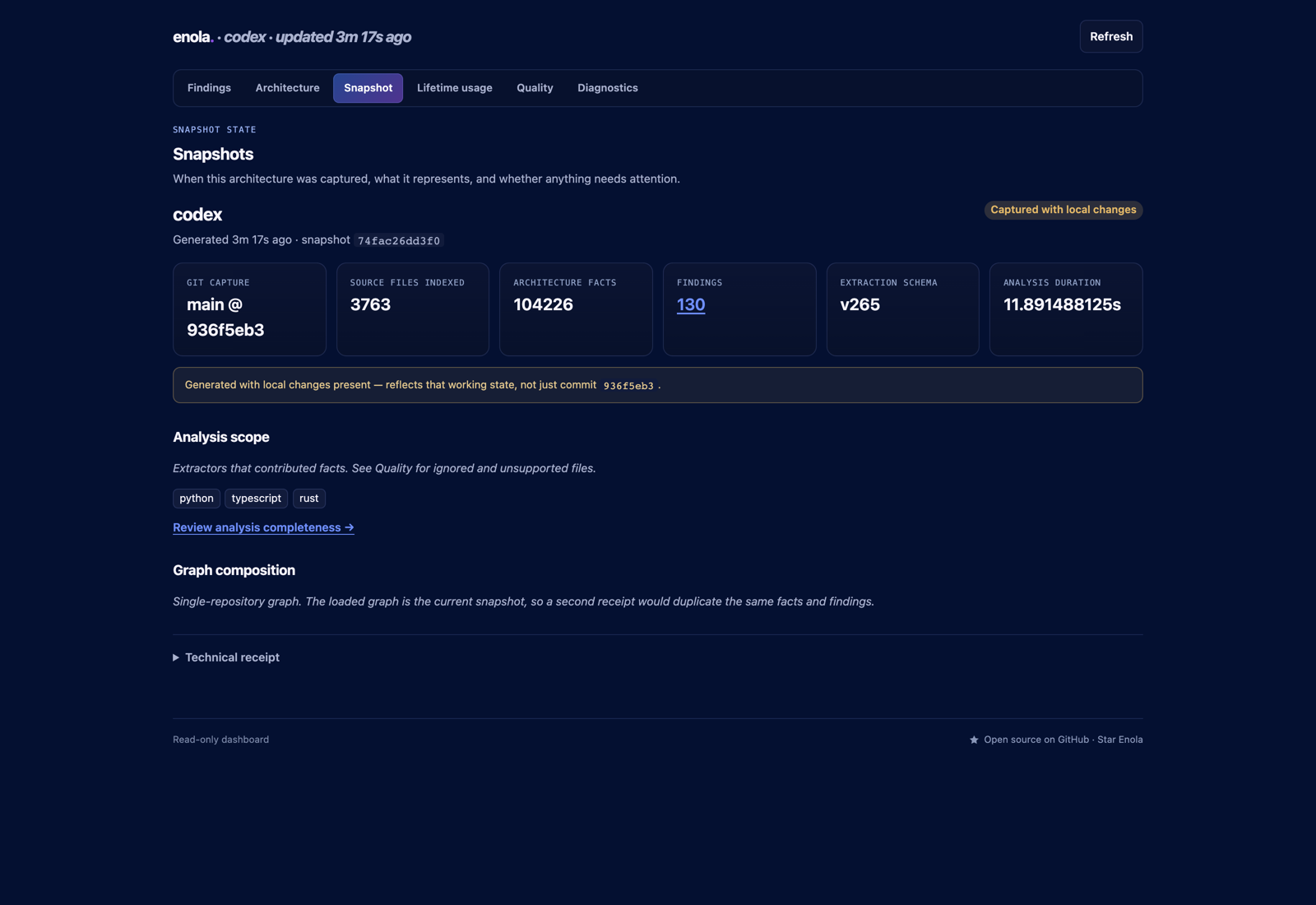
Enola checks receipt compatibility before comparing snapshots because extractor and ignore-rule changes can alter the observed graph.
05 · Quality
Check whether analysis is complete
Quality accounts for indexed source, intentional exclusions, unsupported inputs, recognized files that emitted no facts, inactive extractors, parse failures, and unresolved cross-repository connections.
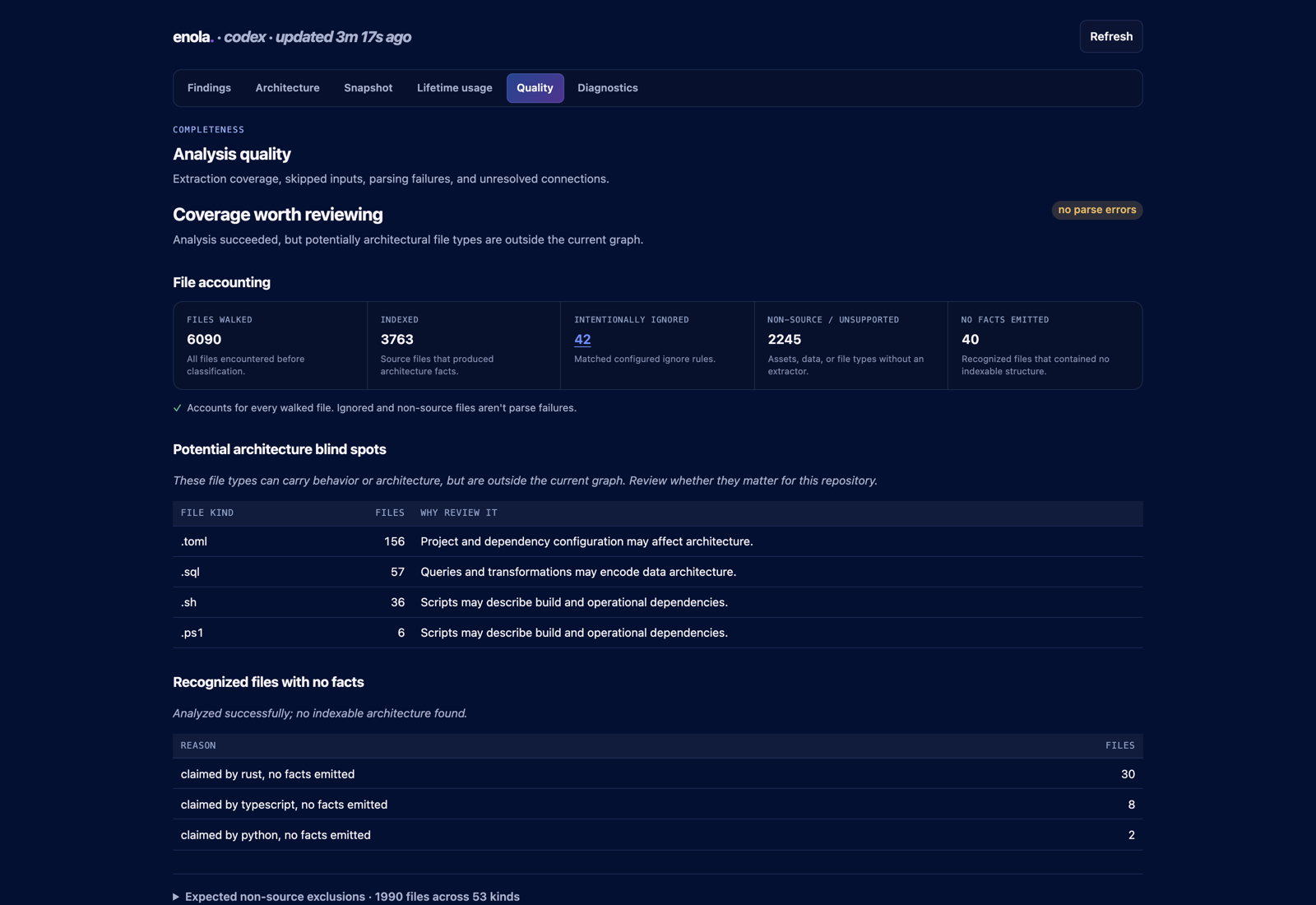
- Intentionally ignored shows matched exclusion rules.
- Non-source / unsupported separates assets and unrecognized file types.
- No facts emitted identifies recognized files with no indexable structure.
- Parse errors identifies extractor failures.
- Unresolved cross-repository connections lists remote targets absent from the cluster snapshot.
06 · Refresh
Load a newer snapshot
The dashboard keeps its graph stable while you inspect it. After another Enola process writes a snapshot, use Refresh to load it from disk. Launch with an explicit cluster config when you need a multi-repository graph.
Several agent sessions can host dashboards at once. Run enola --status to list active sessions and their URLs. Diagnostics identifies which process serves the current page.
07 · Reference
Go deeper
Read How to use Enola Dashboard for a worked walkthrough using a real repository. The complete dashboard reference covers package metrics, lifetime usage, shared URLs, upgrade behavior, and browser troubleshooting.